
This browser is not supported. To ensure the best possible user experience, please use one of the following browsers:
Chrome | Firefox | Internet Explorer | Safari | Opera

Support Center

Our frequently asked questions service offers answers to common questions. If you don't find an answer, please contact our customer support and a representative will be able to assist you.

Overview

How do I sign up or activate my account?

Grab will create a Hyperwallet account on your behalf. Once created, an email will be sent to you with a link you can use to begin the activation process.

Subject: Activate Hyperwallet Account

Email domain: do.not.reply.hyperwallet.com

If you have been notified by Grab that your first payment has been sent but have not received an activation email, click here.

If you have any questions about creating a Payment Portal, please visit Grab Help Center or contact Grab for support.
How do I change my registration information?
To change your registration info:
  1. Click Profile 
  2. Click the Update button for the information you'd like to change
  3. Make the desired changes to your information.
  4. Click Confirm.
What are the supported desktop browsers?
  • Google Chrome : Version 46 and up
  • Safari : Version 8 and up
  • Firefox : Version 42 and up
  • Internet Explorer : Version 11 and up
  • Opera : Version 10 and up

Withdrawing Funds

How do I transfer funds from my Hyperwallet Pay Portal to my bank account?

You can transfer the balance of your Pay Portal to any bank account in your country.

To transfer your Pay Portal balance to a bank account:

  1. Click on Transfer.
  2. If you are transferring to a new account, select Add New Transfer Method.
  3. Select the country and currency of the bank account where the funds are going to be sent to.
  4. Select the transfer method and click on Continue.
  5. Enter the required account information. Please carefully verify that your banking information is correct, as incorrect information may cause significant delays to your transfer.
  6. Remember As is a nickname given to your transfer method. For example, “Andy’s Savings.” This name will appear in the transfer center.
  7. Make sure all the information is correct and click on Confirm.
  8. If currency conversion is required to complete the transaction, currency conversion details will be displayed.

Please allow 1-3 business days for the funds to be credited to a bank account in North America or Europe, or up to 5 business days for other destinations.

Account Management

How can I confirm that my banking information is correct?

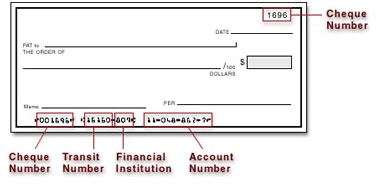
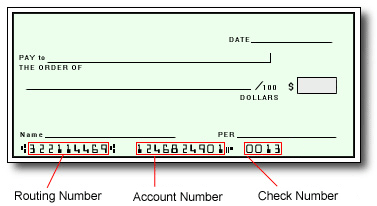
The best way to confirm that you have entered your banking information correctly is to refer to the numbers on the bottom of your check.

In Canada and the United States, your account information would be displayed as shown on the sample checks below:

Canadian Accounts:

American Accounts:

For all other regions, please refer either to your bank statement or contact your financial institution to confirm your banking information.


How do I change my account password?
  1. Log in to your Pay Portal.
  2. Click Settings > Security
  3. Enter your existing password.
  4. Enter and confirm a new unique password.
  5. Click Update Password

Password requirements:

  • At least 1 upper case letter
  • At least 1 lower case letter
  • At least 1 number
  • At least 8-128 characters long
  • At least 1 special character
  • Not used before.
How do I update my bank account information?
  1. Log in to your Pay Portal.
  2. Click Transfer
  3. On the Transfer Center, click Action > Update
  4. Update your account information.
  5. Click Continue
  6. Review your profile information and make updates if required.
  7. Click Confirm

Tracking Your Payment/Transfers

What do the payment status descriptions refer to?

Payments and transfers go through various stages while being processed. Updates are noted on your Pay Portal to keep you apprised of your funds and when you can expect them.

What is a Receipt ID?
The Receipt ID is a record of the transaction which can be referenced when contacting customer support.
Where can I find my destination bank account or debit card number?
  1. Log in to your Pay Portal.
  2. Click History
  3. Click on the transaction description to view the details.

Note: For security reasons, only the last four digits of your account information will be displayed.

Why does my account need review?
As part of our compliance program, we may require that you provide some additional information in order for you to continue to receive funds. For security reasons, we will not ask you to provide or verify personal information via email. Please visit your Pay Portal to update your information and follow steps to review your personal information.
My payment has not arrived in my destination account and it is past the estimated delivery date.
While we aim to process all funds in a timely manner, processing times vary by financial institution. Once the funds have left our system the processing times for the receiving bank and any intermediary financial institutions involved can vary between institutions as well as country.
Why am I getting multiple emails?
If you have initiated multiple transfers from your Pay Portal, you will receive separate cash out notifications for each transfer.
How do I update the destination bank account for my payment?

After a payment has been processed, the destination account cannot be changed. However, you can update the destination account for future payments by following these steps:

  1. Log in to the Pay Portal
  2. Click Transfer
  3. On the Transfer Center, click Action > Update
  4. Update the information
  5. Click Confirm.
My payment amount is different than I anticipated. Why?
When a payment is initiated, the amount transferred from your Pay Portal will be deducted, along with a transfer fee (if applicable). In the case of wire transfers, the recipient bank may impose processing fees which will be deducted from your balance.

Customer Support

I forgot my Hyperwallet password. What should I do?

Please note we do NOT keep a record of your password!

If you have forgotten your password, you may reset it by following these steps:

  1. Click on Forgot Your Password? or Resend Activation Email.
  2. Enter your email address registered with the Pay Portal.
  3. Wait for a password reset email.
  4. Click on the password reset link in the email.
  5. Enter the answers to your security questions (answers are case sensitive).
  6. Enter a new password you have not previously used.
  7. Confirm the new password.
  8. Click on Submit.

Click here if you have forgotten your password


How do I contact Customer Support?
Please refer to the Support tab at the top of the page for support hours and contact information.

Contact us:

Email Support

Please login and use the form provided under the Support section to send us your question. If you have issues logging in, please contact us by phone.

Telephone

  • Grab customer service representatives are available for support:

Support Phone Number: (888) 930-4722 opt. 3

Support Hours: 
9am -5pm CST
 | Monday - Saturday

Support Email: controller@getgrab.com

Chat

Chat support may be available if offered by your company. Please be sure you’re logged in to take advantage of our live chat feature. If you’re logged in already, look for the chat icon in the bottom-right corner of the page.